
License Management
Licenses are the core entity in LicenceForge. Each license ties a customer to a product, controls how many sites can be activated, and tracks expiration, status, and usage across its entire lifecycle.
What is a license?
A license in LicenceForge represents a single grant of permission for a customer to use a specific product. Every license includes:
- A unique, cryptographically generated license key in the format
XXXX-XXXX-XXXX-XXXX - An association to a product and optionally a price tier
- A customer identified by name and email address
- An activation limit that controls how many sites can use the license concurrently
- A status that governs whether the license is currently valid
- An optional expiration date (licenses without one are treated as lifetime)
How licenses are created
Licenses can be created through three channels:
Manual creation
Administrators can create licenses directly from the WordPress admin panel by navigating to LicenceForge > Licenses > Add New. This is useful for issuing complimentary licenses, replacing lost keys, or testing. See Creating Licenses for the full form reference.
WooCommerce integration
When a WooCommerce order containing a LicenceForge-linked product reaches the completed status, a license is automatically generated and emailed to the customer. The activation limit and expiration are inherited from the price tier associated with the WooCommerce product variation.
Stripe integration
For stores using Stripe directly (without WooCommerce), LicenceForge listens for checkout.session.completed and invoice.paid webhook events. When a qualifying event is received, a license is created using the Stripe price ID mapped to a LicenceForge product tier. Subscription renewals automatically extend the license expiration date rather than creating duplicate licenses.
Note
Regardless of how a license is created, the license key is generated using the same secure algorithm, hashed with HMAC-SHA256 before storage, and displayed to the customer exactly once. See Creating Licenses for details on key generation and security.
Admin license list
The license list page (LicenceForge > Licenses) displays all licenses in a sortable, filterable table. The following columns are shown by default:
| Column | Description |
|---|---|
| Key | The license key, masked by default (e.g., XXXX-XXXX-XXXX-7FGH). Click to reveal the full key. Only the last segment is visible for security. |
| Product | The product name linked to this license. Clicking the product name navigates to the product detail page. |
| Customer | The customer name and email address. Clicking opens the customer detail view. |
| Sites | Active activations out of the total allowed (e.g., 2 / 5). Displayed as a fraction. |
| Status | The current license status, displayed as a badge: Active, Trial, Expired, Suspended, or Cancelled. |
| Expires | The expiration date in YYYY-MM-DD format, or Lifetime if no expiration is set. |
| Actions | Quick-action links: View (open license detail), Edit, Suspend/Unsuspend, and Revoke. |
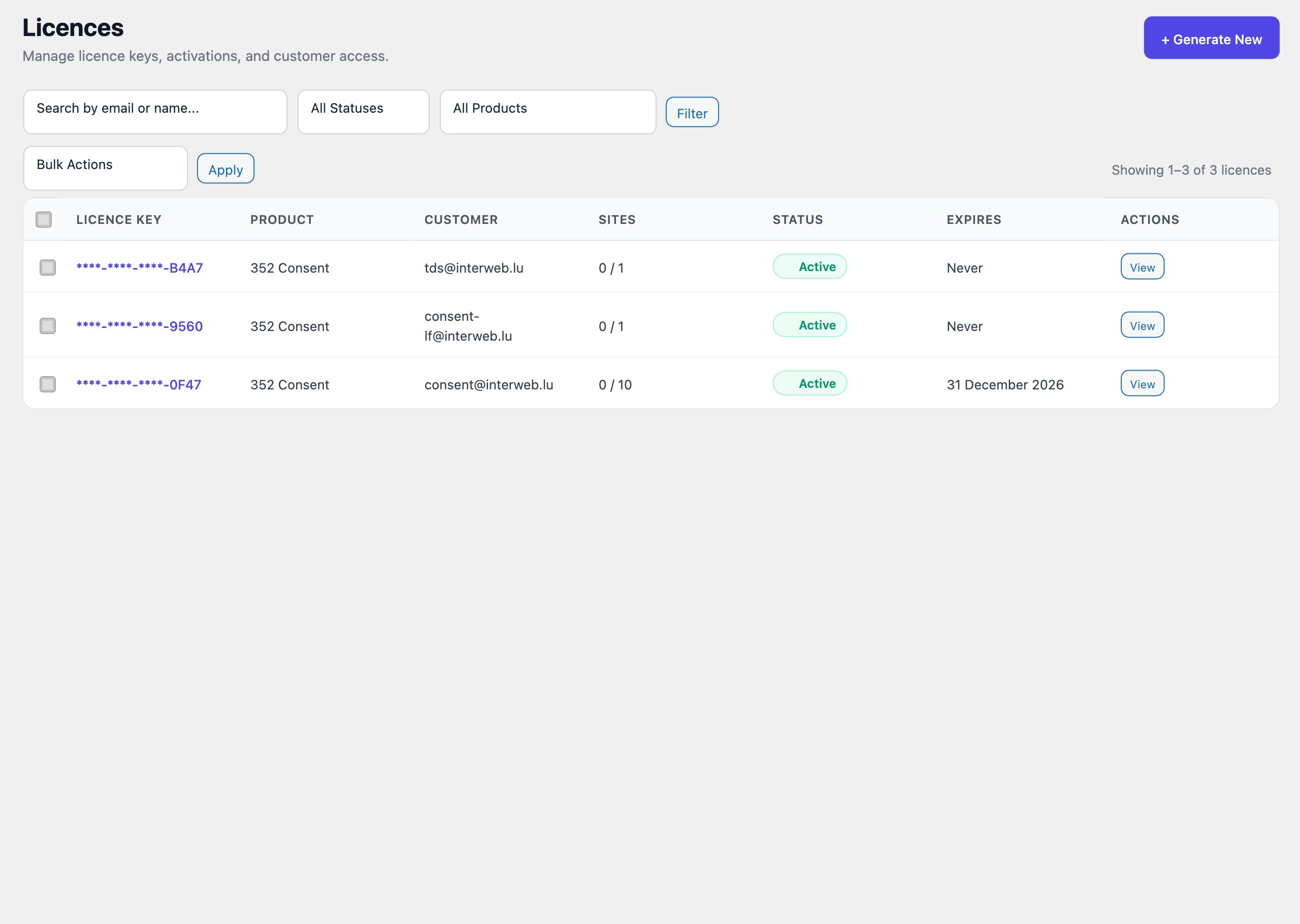
The list supports filtering by status, product, and date range. Use the search field to find licenses by key fragment, customer name, or email address. Bulk actions are available via the checkboxes on each row—see Bulk Actions for details.