
Key Rotation
Key rotation replaces an existing license key with a newly generated one, immediately invalidating the old key. This is the recommended response when a key is compromised, shared without authorisation, or when a customer requests a fresh key for security purposes.
How rotation works
The rotate_key() method performs the following steps in a single database transaction:
- Generate a new key — A new license key is generated using the same algorithm described in Creating Licenses. The key follows the
XXXX-XXXX-XXXX-XXXXformat with the same safe character set. - Hash and store — The new key is hashed with HMAC-SHA256 and written to the
wplf_licensestable, replacing the previous hash. - Invalidate old key — Because the stored hash is overwritten, the old key can no longer match during validation. The invalidation is immediate.
- Deactivate all sites — All active site activations associated with the license are deactivated. Each activation record has its
deactivated_atcolumn set to the current timestamp. - Send notification — An email is dispatched to the customer using the
license_key_rotatedemail template, containing the new plaintext key. - Log the event — An entry is written to the audit log recording the rotation, the administrator or customer who initiated it, and the timestamp.
$manager = wplf_get_license_manager();
$result  = $manager->rotate_key( $license_id );

if ( is_wp_error( $result ) ) {
    // Handle error (e.g., license not found, licence is cancelled)
    error_log( $result->get_error_message() );
} else {
    // $result['license_key'] contains the new plaintext key (one-time access)
    $new_key = $result['license_key'];
}
Important
Key rotation deactivates all sites immediately. After rotation, the customer must re-activate each site using the new key. Ensure you communicate this clearly, especially if the customer has multiple active sites.
Admin UI
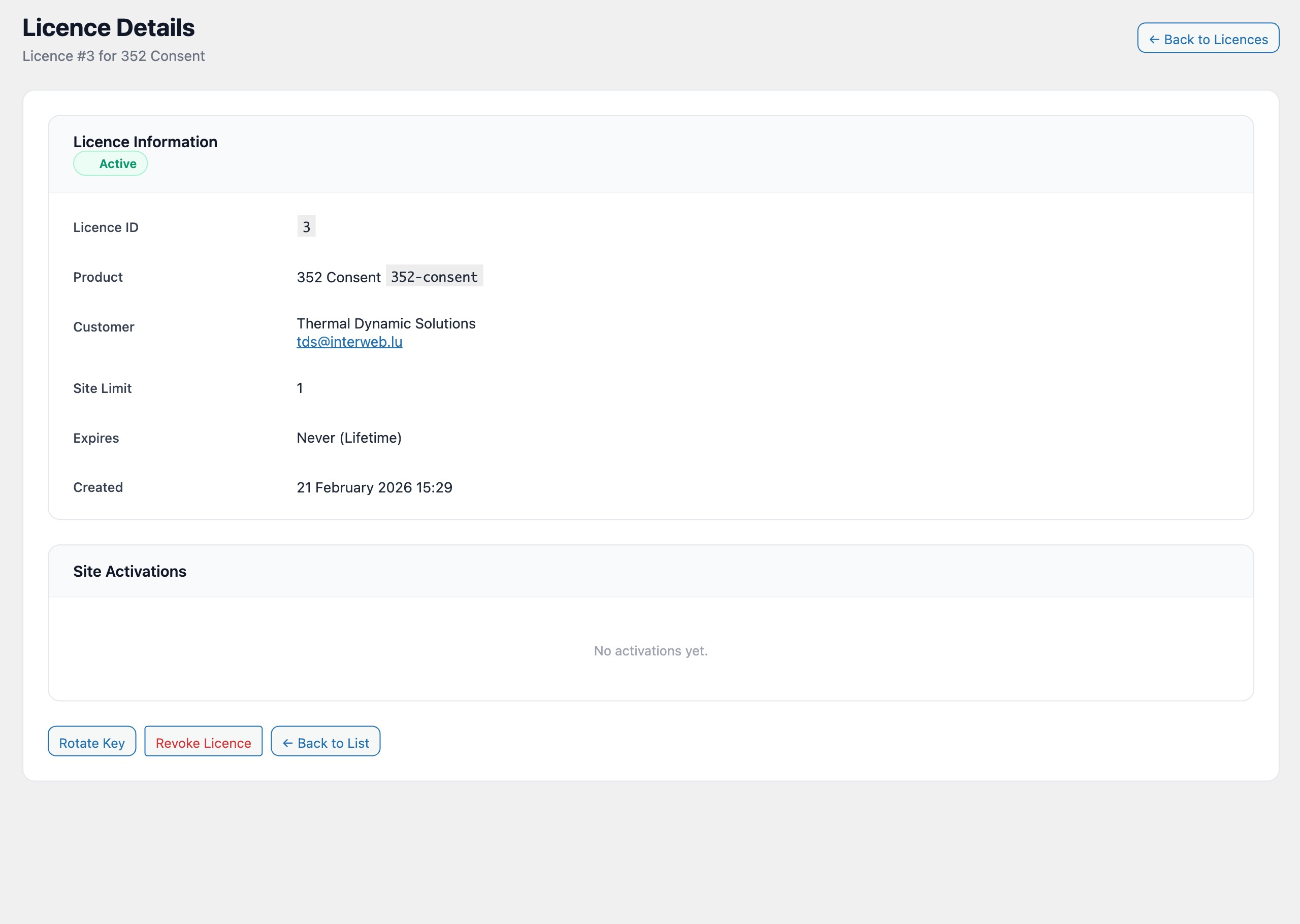
Administrators can rotate a key from the license detail page in the WordPress admin panel:
- Navigate to LicenceForge > Licenses and click View on the target license.
- In the Actions section, click Rotate Key.
- A confirmation dialog appears warning that the old key will be invalidated and all sites will be deactivated.
- After confirmation, the new key is displayed in a highlighted box with a copy button, identical to the post-creation display.
REST API
Key rotation is available through the admin REST API endpoint:
| Method | Endpoint | Auth | Description |
|---|---|---|---|
POST |
/wplf/v1/admin/licenses/{id}/rotate-key |
Admin (nonce or Application Password) | Rotates the license key for the specified license ID. Returns the new plaintext key in the response body. |
Request example
curl -X POST \
  https://example.com/wp-json/wplf/v1/admin/licenses/42/rotate-key \
  -H "Authorization: Basic BASE64_ENCODED_APP_PASSWORD" \
  -H "Content-Type: application/json"
Response example
{
  "success": true,
  "data": {
    "license_id": 42,
    "license_key": "K4MN-9BRD-FGHJ-2XYZ",
    "deactivated_sites": 3,
    "email_sent": true
  }
}
Note
The license_key field in the response is the only time the new plaintext key is available via the API. It is not included in subsequent GET requests for the license.
Customer portal
Customers can also rotate their own license keys from the customer portal. The rotation flow is identical to the admin flow, with two differences:
- The customer must verify their identity by entering the email address associated with the license before the rotation is processed.
- The new key is displayed in the portal and also sent via the
license_key_rotatedemail template.
Customer-initiated rotation is logged in the audit trail with the actor type set to customer rather than admin.
Email notification
After a successful rotation, an email is sent to the customer using the license_key_rotated template. The template has access to the following merge tags:
| Merge tag | Description |
|---|---|
{customer_name} |
The customer's display name. |
{product_name} |
The name of the product the license is associated with. |
{license_key} |
The new plaintext license key. |
{deactivated_count} |
The number of sites that were deactivated during rotation. |
{portal_url} |
A link to the customer portal where the customer can manage their license. |
Email templates can be customised under LicenceForge > Settings > Email Templates. See the Email documentation for details on template editing and preview.
Rotation restrictions
Key rotation is not available for licenses in the Cancelled state. Since cancelled is a terminal state, there is no valid use case for issuing a new key. Attempting to rotate a cancelled license returns a WP_Error with the code wplf_cannot_rotate_cancelled.
Licenses in any other state (Active, Trial, Expired, Suspended) can be rotated. The license status is preserved after rotation—only the key and activations are affected.