
Bulk Actions
The license list page supports bulk operations that allow administrators to act on multiple licenses simultaneously. This is useful for mass cleanup, responding to payment disputes, or exporting license data for reporting.
Accessing bulk actions
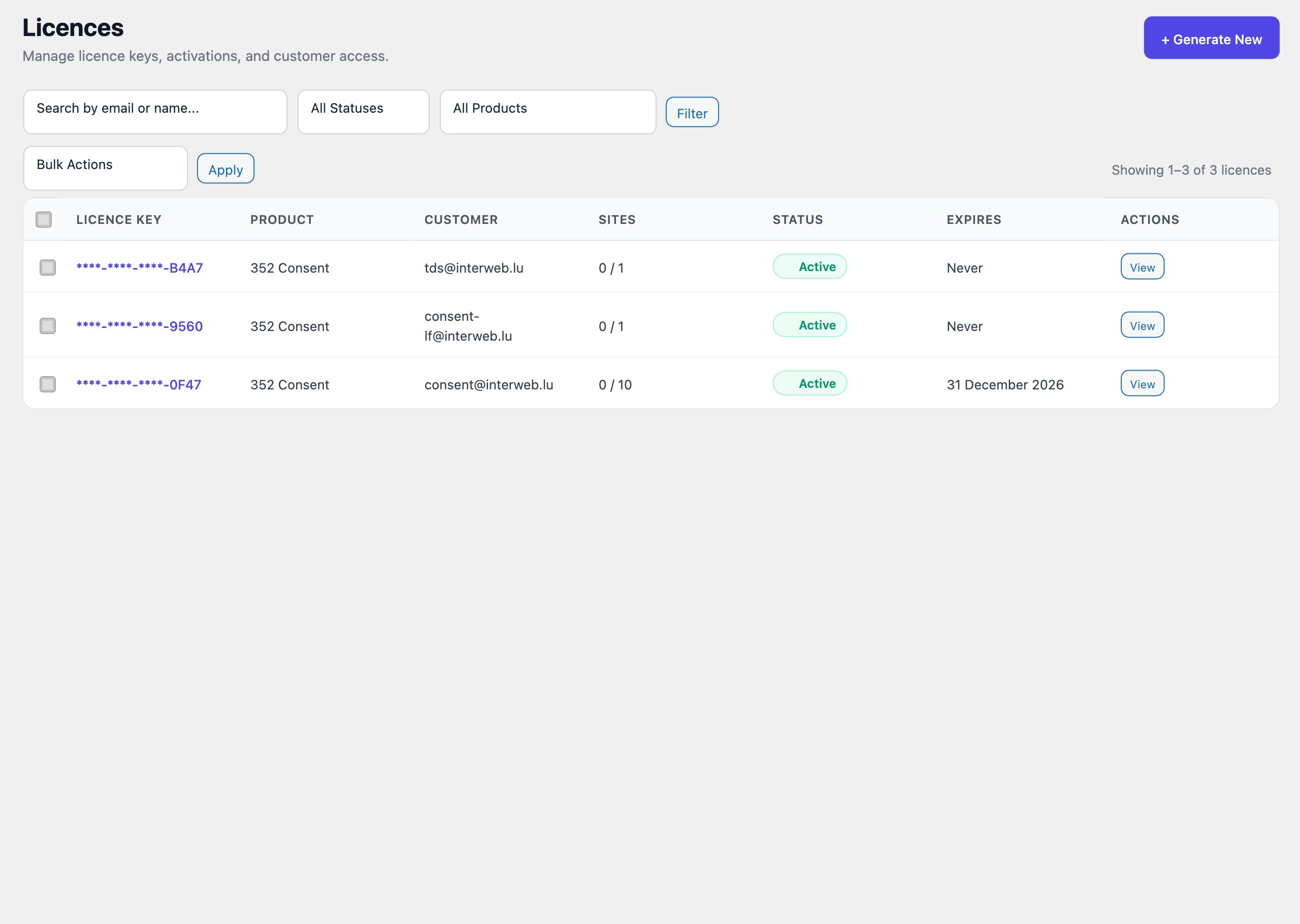
Bulk actions are available from the main license list page at LicenceForge > Licenses:
- Select one or more licenses using the checkboxes in the leftmost column of the table. Use the checkbox in the table header to select all licenses on the current page.
- Choose an action from the Bulk Actions dropdown at the top (or bottom) of the table.
- Click Apply to execute the selected action.
Available actions
Three bulk actions are available:
| Action | Effect | Reversible |
|---|---|---|
| Revoke Selected | Transitions each selected license to the Cancelled state. All active site activations are deactivated. | No — cancelled is a terminal state. |
| Suspend Selected | Transitions each selected license to the Suspended state. Suspended licenses no longer validate. | Yes — suspended licenses can be reactivated individually. |
| Export Selected (CSV) | Generates a CSV file containing the selected licenses and triggers a browser download. No state changes are made. | N/A — read-only operation. |
Revoke Selected
The revoke action permanently cancels each selected license. For each license in the selection:
- The license status is transitioned to Cancelled following the standard state transition rules.
- If
wplf_auto_deactivateis enabled, all active site activations are deactivated. - The
wplf_license_status_changedandwplf_license_{old}_to_cancelledaction hooks fire for each license.
Important
Revocation is irreversible. Cancelled licenses cannot be restored. A confirmation dialog is displayed before the action is executed, listing the number of licenses that will be affected.
Licenses that are already in the Cancelled state are silently skipped—they do not cause an error.
Suspend Selected
The suspend action temporarily disables each selected license. Suspension is typically used for:
- Payment disputes or chargebacks awaiting resolution.
- Terms of service violations under investigation.
- Temporary holds requested by the customer.
For each license in the selection:
- The license status is transitioned to Suspended.
- Validation requests for this license return a
403response with the reasonlicense_suspended. - Active site activations are not deactivated by default during suspension. The sites remain registered but cannot validate until the license is unsuspended.
Only licenses in the Active or Trial state can be suspended. Licenses in other states are skipped with a notice in the results summary.
Export Selected (CSV)
The export action generates a CSV file containing data for the selected licenses. This is a read-only operation that does not modify any license data. The exported CSV includes the following columns:
| CSV Column | Source |
|---|---|
license_id |
Internal license ID |
license_key_last4 |
Last four characters of the license key (masked for security) |
product_name |
Name of the associated product |
customer_email |
Customer email address |
customer_name |
Customer display name |
status |
Current license status |
activation_count |
Number of currently active site activations |
activation_limit |
Maximum allowed activations |
created_at |
License creation date (ISO 8601) |
expires_at |
License expiration date (ISO 8601), or empty for lifetime licenses |
Note
The exported CSV never includes plaintext license keys. Only the last four characters are exported to allow identification without compromising security.
Processing order
Bulk operations are processed sequentially, one license at a time, in the order they appear in the selection. Each operation is wrapped in its own database transaction to ensure that a failure on one license does not roll back changes to previously processed licenses.
After processing completes, a results summary is displayed at the top of the license list page:
- Succeeded — The number of licenses that were successfully processed.
- Skipped — The number of licenses that were skipped because they were already in the target state or an incompatible state.
- Failed — The number of licenses that encountered an error, with a brief description of each failure.
Permissions
Bulk actions require the manage_wplf_licenses capability. By default, this capability is granted to the Administrator role. It can be assigned to additional roles using the WordPress role editor or programmatically via add_cap().
The revoke action additionally checks for the delete_wplf_licenses capability, as cancellation is a destructive and irreversible operation.