
Installation
LicenceForge installs like any standard WordPress plugin. The entire process takes under a minute and requires no manual database setup -- activation handles everything automatically.
Note
Before installing, verify your server meets the system requirements. LicenceForge requires WordPress 5.8+ and PHP 7.4+ at minimum.
Method 1: WordPress Admin Upload
This is the recommended approach for most users.
- Download the
licenceforge.zipfile from your account. - In your WordPress admin, navigate to Plugins > Add New > Upload Plugin.
- Click Choose File, select the ZIP, then click Install Now.
- Once installed, click Activate Plugin.
Method 2: FTP / SFTP Upload
Use this method if you prefer direct file access or have upload size restrictions.
- Unzip
licenceforge.zipon your local machine. - Connect to your server via FTP or SFTP.
- Upload the
licenceforge/folder to/wp-content/plugins/. - In the WordPress admin, go to Plugins and click Activate next to Licence Forge.
Method 3: WP-CLI
For developers comfortable with the command line:
wp plugin install /path/to/licenceforge.zip --activateWhat Happens on Activation
When you activate LicenceForge, the plugin automatically performs the following setup tasks. No manual intervention is required.
Database Tables
Eight custom tables are created using the WordPress dbDelta() function. All table names use the {prefix}wplf_ namespace.
| Table | Purpose |
|---|---|
wplf_products | Your plugins/themes with version info, rollout settings, and trial configuration |
wplf_product_prices | Pricing tiers with Stripe/WooCommerce mapping, activation limits, and feature gating |
wplf_licenses | Issued license keys (hashed), customer data, status, and subscription references |
wplf_activations | Per-site activations with last-seen timestamps and device fingerprints |
wplf_webhook_events | Stripe/WooCommerce webhook log for idempotency and retry tracking |
wplf_audit_log | Chronological log of all license operations with hashed IP addresses |
wplf_analytics | Validation and activation event data for usage analytics |
wplf_api_keys | API key management with hashed keys, labels, permissions, and product scoping |
Scheduled Cron Events
Four WP-Cron events are registered to handle background maintenance:
| Event Hook | Frequency | Purpose |
|---|---|---|
wplf_daily_maintenance | Daily | Expire licenses past grace period, cleanup old audit/webhook/analytics records, auto-deactivate expired sites, run health alerts |
wplf_check_expiring_licenses | Daily | Send email notifications for licenses nearing expiration |
wplf_cleanup_analytics | Weekly | Purge analytics data older than 365 days |
wplf_webhook_retry | Every 5 minutes | Retry failed webhook events with exponential backoff |
Tip
If your site does not receive regular traffic, consider setting up a real server-side cron job to trigger wp-cron.php. This ensures scheduled tasks run on time even during low-traffic periods.
Encryption Secrets
Two 64-character random secrets are generated and stored as WordPress options on first activation:
wplf_license_hmac_secret-- used for HMAC-based license key hashing and privacy-preserving IP hashingwplf_download_token_secret-- used to sign time-limited download tokens
These values are created once and never regenerated on subsequent activations. If they already exist in the database, they are left unchanged.
Warning
Do not manually modify or delete these secrets. Changing them will invalidate all existing license key hashes and active download tokens.
Default Options
The following default settings are written to the wp_options table. Each is created only if the option does not already exist (safe for re-activation).
| Option Key | Default Value | Description |
|---|---|---|
wplf_grace_period_days | 3 | Days after license expiry before status changes to expired |
wplf_rate_limit_validate | 30 | Maximum validation requests per minute per IP |
wplf_rate_limit_activate | 10 | Maximum activation requests per minute per IP |
wplf_stripe_mode | test | Stripe API mode (test or live) |
wplf_email_notifications | true | Enable email notifications for license events |
wplf_auto_deactivate | true | Automatically deactivate sites when a license expires |
wplf_analytics_enabled | true | Collect validation and activation analytics |
wplf_require_api_key | yes | Require API key authentication for REST endpoints |
wplf_db_version | 1.0.0 | Tracks the current database schema version for migrations |
Verifying Installation
After activation, confirm everything is working:
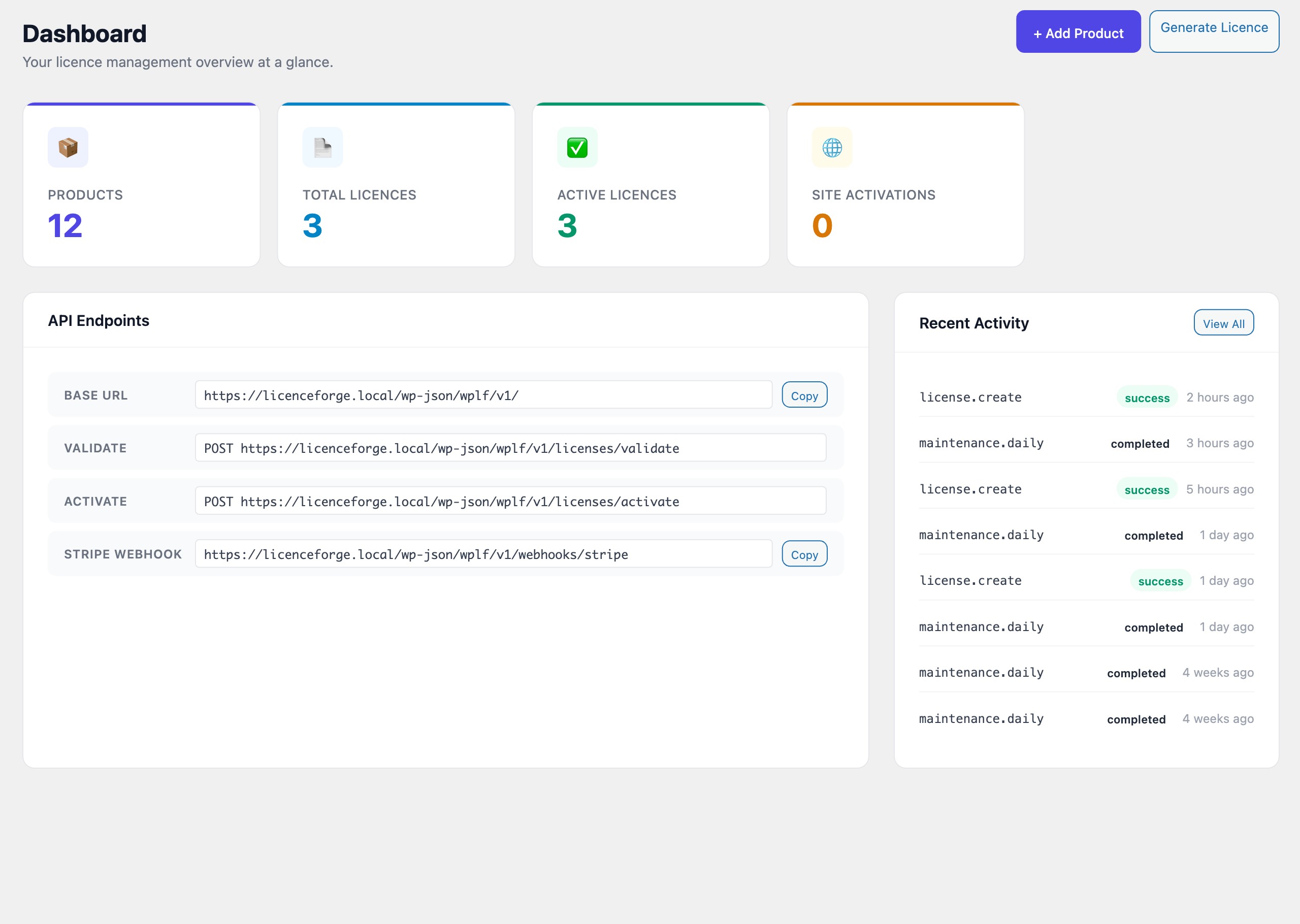
- Navigate to Licences in the WordPress admin sidebar -- the LicenceForge dashboard should load.
- Go to Licences > Settings and check that the DB Version displays
1.7.0(the latest schema version). - Look for a LicenceForge Health widget on the WordPress Dashboard page -- all checks should show green.
Next Steps
- First-Time Setup -- Configure Stripe, email, branding, and API security
- Create Your First Product -- Set up a product with pricing tiers
- System Requirements -- Detailed environment requirements and recommendations