
Staggered Rollouts
Staggered rollouts let you deliver a new version to a configurable percentage of licences before making it available to everyone. If a critical issue is discovered, you can pull the version immediately to stop distribution.
Rollout fields
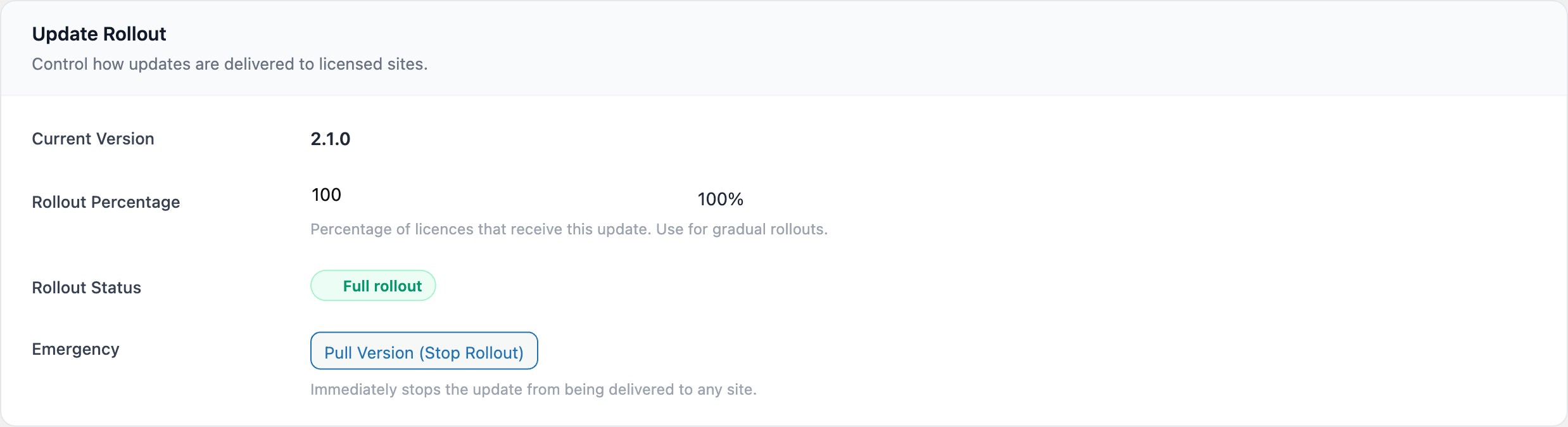
Rollout settings are stored on the wplf_products table and configured in the Update Rollout section of the product form (visible only when editing an existing product).
| Field | Column type | Default | Description |
|---|---|---|---|
rollout_percentage |
tinyint unsigned |
100 |
Percentage of licences that receive the update. Range: 0-100, step: 5. Controlled by a range slider in the admin UI. |
rollout_version |
varchar(20) |
NULL |
The version string being rolled out. Set when calling set_rollout(). |
rollout_pulled |
tinyint(1) |
0 |
When set to 1, stops all distribution of the current version regardless of percentage. |
Deterministic bucketing
LicenceForge uses a deterministic hash to assign each licence to a stable rollout bucket. This ensures that the same licence always lands in the same bucket for a given version, so a customer does not flip between "update available" and "no update" on successive checks.
Bucket algorithm
The bucket is computed as follows:
$bucket = abs( crc32( $license_key_hash . ':' . $rollout_version ) ) % 100;This produces a number from 0 to 99. If the bucket is less than the rollout_percentage, the licence receives the update.
| Input | Purpose |
|---|---|
license_key_hash |
The SHA-256 hash of the licence key (stored in the database, never the raw key) |
rollout_version |
The version being rolled out. Including this in the hash ensures a different distribution when a new version is released. |
Note
Because the hash input includes the version string, the same licence may land in a different bucket for a different version. This prevents the same set of licences from always being first in the rollout.
Decision flow
When a licence checks for updates, WPLF_Product_Service::is_in_rollout_group() evaluates the following logic:
- If
rollout_pulledistrue, returnfalse(no one gets the update). - If
rollout_percentageis 100 or greater, returntrue(everyone gets the update). - If
rollout_percentageis 0 or less, returnfalse(no one gets the update). - Otherwise, compute the CRC32 bucket and compare it to the percentage.
Configuring a rollout
Via the admin UI
- Navigate to LicenceForge → Products and edit the product.
- In the Update Rollout section, adjust the Rollout Percentage slider to the desired value (e.g. 10%).
- Save the product.
Via code
Use WPLF_Product_Service::set_rollout() to configure a rollout programmatically:
WPLF_Product_Service::set_rollout(
    $product_id,    // Product ID
    '2.0.0',        // Version being rolled out
    20              // Percentage (0-100)
);
This method:
- Sets
rollout_versionto the specified version string. - Sets
rollout_percentageto the specified value (clamped to 0-100). - Resets
rollout_pulledto0. - Logs an audit entry with the action
product.rollout_set.
Increasing the rollout
A typical rollout strategy increases the percentage over time:
| Day | Percentage | Action |
|---|---|---|
| 1 | 5% | Initial canary release. Monitor error logs and support channels. |
| 2 | 20% | Expand if no issues detected. |
| 3 | 50% | Broader distribution. Watch for edge-case failures. |
| 5 | 100% | Full release. |
Tip
Use the slider's 5% increments for fine-grained control. For large user bases, even a 5% canary release can cover hundreds of sites, providing sufficient signal to detect issues.
Pulling a version
If a critical issue is discovered during a rollout, you can immediately stop all distribution by pulling the version.
Via the admin UI
Click the Pull Version (Stop Rollout) button in the Update Rollout section. This button is styled as a danger action and is only visible when a rollout version is set and has not already been pulled.
Via code
WPLF_Product_Service::pull_version( $product_id );This method:
- Sets
rollout_pulledto1. - Logs an audit entry with the action
product.version_pulledand outcomewarning.
Important
Pulling a version only stops new downloads and update notifications. Sites that have already installed the update are not affected. To roll back installed sites, you must release a new version with the fix.
Rollout statuses
The admin UI displays one of three rollout states:
| Status | Condition | Display |
|---|---|---|
| Full rollout | rollout_percentage = 100 and not pulled |
Green "Full rollout" badge |
| Canary rollout | rollout_percentage < 100 and not pulled |
Yellow badge showing the current percentage |
| Version PULLED | rollout_pulled = 1 |
Red "Version PULLED" badge with message that no sites are receiving the version |
Resuming after a pull
After pulling a version and fixing the issue:
- Upload the corrected ZIP package.
- Update
latest_versionto the new version number. - Recalculate the package hash.
- Call
set_rollout()with the new version and desired starting percentage. This resetsrollout_pulledto0automatically.
Next steps
- Version Management — uploading packages and managing changelogs
- Admin Panels — monitor rollout progress from the dashboard