
Upgrading
LicenceForge uses a version-based migration system that automatically applies database schema changes when the plugin is updated. In most cases, upgrades are seamless and require no manual intervention.
Warning
Always back up your database before upgrading, especially across major versions. While all migrations are designed to be idempotent (safe to run multiple times), a database backup gives you a safety net if anything goes wrong.
How Upgrades Work
LicenceForge tracks two version numbers:
- Plugin version (
wplf_version) -- The installed code version, currently3.2.0. - Database version (
wplf_db_version) -- The schema version, progressing from1.0.0through1.7.0.
On every page load, the plugins_loaded hook compares the stored plugin version against the code version. If they differ, the activation routine runs automatically:
- All 8 database tables are created or updated via
dbDelta()(safe and additive). - Any pending migrations between the stored
wplf_db_versionand the latest target (1.7.0) are applied in sequence. - The stored
wplf_versionis updated to match the running code.
This means upgrades happen transparently whether you update via the WordPress admin, FTP file replacement, or WP-CLI.
Migration History
The following table lists every database migration. Each migration is applied sequentially -- you cannot skip versions. If you are upgrading from an older version, all intermediate migrations run automatically.
| DB Version | Migration | Changes |
|---|---|---|
1.0.0 |
Initial schema | Base tables created on first activation: products, product_prices, licenses, activations, webhook_events, audit_log, analytics, api_keys. |
1.1.0 |
Foreign keys and indexes |
Foreign keys: fk_prices_product (CASCADE), fk_licenses_product (RESTRICT), fk_licenses_price (SET NULL), fk_activations_license (CASCADE), fk_audit_license (SET NULL).Indexes: idx_licenses_created, idx_audit_outcome, idx_webhook_source, idx_activations_last_seen, idx_licenses_email.
|
1.2.0 |
Webhook retry columns | Adds retry_count (smallint, default 0) and next_retry_at (datetime) columns to wplf_webhook_events. Adds idx_webhook_retry index for efficient retry queue processing. |
1.3.0 |
Feature gating | Adds features (longtext JSON) and label (varchar 100) columns to wplf_product_prices. Enables per-tier feature gating and human-readable tier names (e.g., "Pro", "Enterprise"). |
1.4.0 |
Trial license support | Adds trial_enabled (tinyint, default 0) and trial_days (smallint, default 14) columns to wplf_products. Converts the status column in wplf_licenses from ENUM to VARCHAR(20) to support the trial status value. |
1.5.0 |
Staggered rollouts | Adds rollout_percentage (tinyint, default 100), rollout_version (varchar 20), and rollout_pulled (tinyint, default 0) columns to wplf_products. Allows gradual version deployment to a percentage of active sites. |
1.6.0 |
Package integrity hash | Adds zip_hash (varchar 64) column to wplf_products. Stores the SHA-256 hash of the uploaded ZIP file for download integrity verification. |
1.7.0 |
Device fingerprinting | Adds server_fingerprint (varchar 64) column to wplf_activations. Adds require_fingerprint (tinyint, default 0) and fingerprint_mismatch_action (varchar 20, default warn) columns to wplf_products. Enables server identity tracking to detect license sharing across different hosts. |
Checking Your Current Version
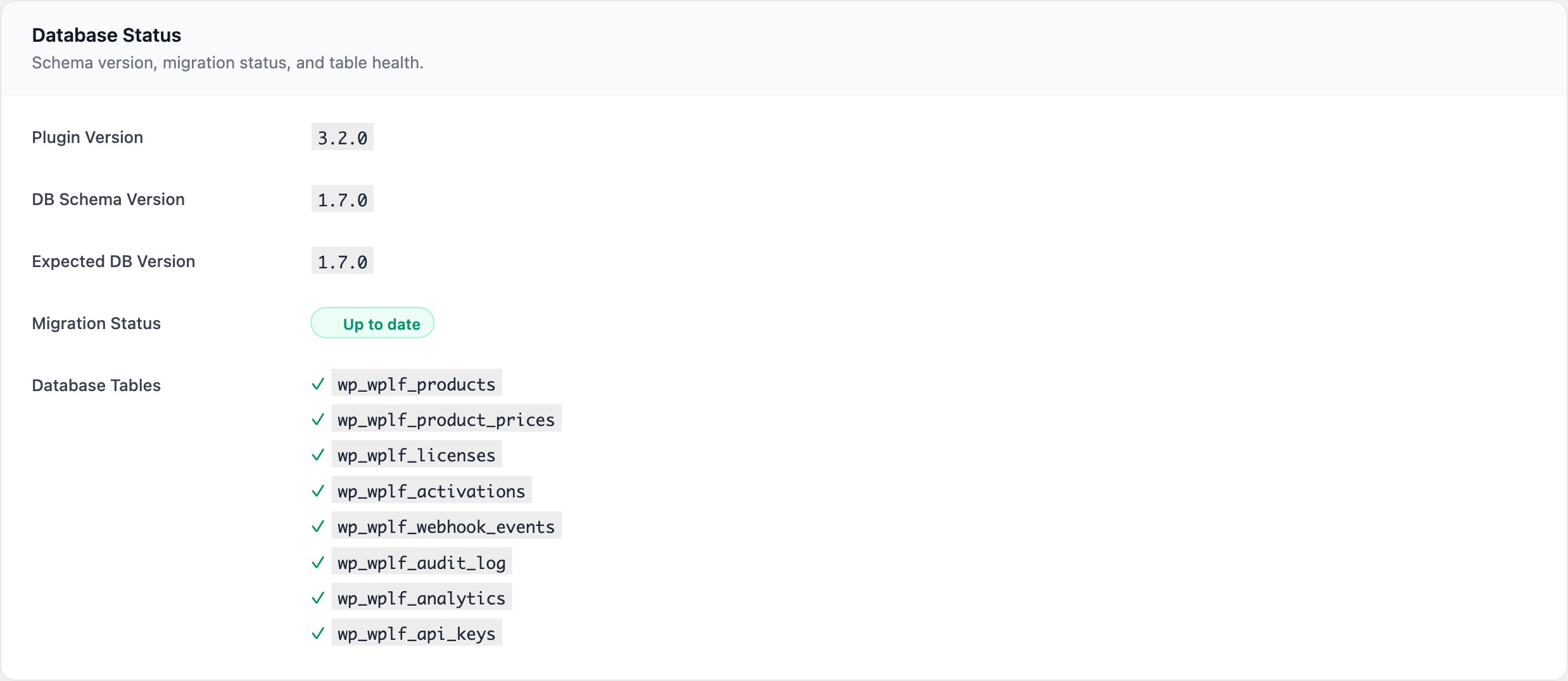
Navigate to Licences > Settings. The footer of the settings page displays:
- Plugin Version -- The installed code version (e.g.,
3.2.0) - DB Version -- The current database schema version (should be
1.7.0on a fully upgraded installation)
If the DB version is behind, the Settings page shows the current and expected versions along with a Run Migrations Now button.
Manual Migration
If automatic migration did not run (for example, due to a file permission issue or interrupted update), you can trigger it manually:
Option 1: Settings Page
- Go to Licences > Settings.
- Scroll to the DB version section.
- Click Run Migrations Now.
- The button triggers an AJAX call that runs
create_tables()followed by all pending migrations. - A success message shows the before and after DB versions.
Option 2: WP-CLI
Deactivate and reactivate the plugin to force the full activation routine:
wp plugin deactivate licenceforge && wp plugin activate licenceforgeOption 3: Re-upload Plugin Files
Upload the latest plugin files via FTP or the WordPress admin. On the next page load, the version mismatch triggers automatic migration.
Upgrade Best Practices
Before Upgrading
- Back up your database -- Export at minimum the 8
wplf_*tables and thewp_optionstable. - Test on staging first -- If you are upgrading across multiple DB versions (e.g., 1.2.0 to 1.7.0), test the migration on a staging environment.
- Review the changelog -- Check for breaking changes or new required settings.
- Verify requirements -- Confirm your server still meets the system requirements for the new version.
During the Upgrade
- Migrations are wrapped in individual version steps. If one fails, subsequent migrations halt but the successfully applied changes remain.
- All migrations check for column/constraint existence before applying changes, making them safe to run multiple times.
- The upgrade process is logged to the audit log as
admin.run_db_migrationswhen triggered manually.
After Upgrading
- Verify DB version -- Go to Settings and confirm the DB version shows
1.7.0. - Check health status -- Look at the LicenceForge Health dashboard widget. All checks should be green.
- Test a license validation -- Make a test API call to confirm the REST endpoints are responding.
- Review cron schedules -- Verify cron events are registered using a plugin like WP Crontrol or via WP-CLI:
wp cron event list --fields=hook,next_run,recurrence | grep wplfTroubleshooting Upgrades
Migration Appears Stuck
If the DB version does not advance after an upgrade attempt:
- Check the PHP error log for messages prefixed with
LicenceForge migration. - Foreign key migrations (1.1.0) can fail if existing data violates referential integrity. The error is logged but does not halt subsequent migrations.
- Try running the migration manually from the Settings page.
Foreign Key Errors on Migration 1.1.0
If you see FK constraint errors in your error log, it usually means orphaned records exist in child tables. For example, a wplf_licenses row references a product_id that no longer exists in wplf_products. Clean up the orphaned data and re-run migrations.
Column Already Exists
All migrations check for column existence before running ALTER TABLE statements. If you see "duplicate column" errors, it typically means a partially applied migration. Running the migration again will safely skip the already-applied changes.
Note
Each migration updates the wplf_db_version option immediately after completing. If a migration fails, the version stays at the previous level, and the migration will be retried on the next upgrade attempt.
Downgrading
Downgrading is not officially supported. Database migrations are forward-only -- there are no rollback scripts. If you need to revert:
- Restore the database from your pre-upgrade backup.
- Replace the plugin files with the previous version.
- Verify the
wplf_db_versionoption matches the restored schema.
Danger
Never manually edit the wplf_db_version option to a higher value than the actual schema state. This will cause the migration system to skip required changes, leading to missing columns and database errors.
Next Steps
- Installation -- Fresh installation guide
- First-Time Setup -- Configure settings after upgrading
- System Requirements -- Verify your environment for the latest version
- Troubleshooting -- Common issues and solutions